Reviews
Your graphics add a nice touch to my presentations and I recently used them for one of my all-hands meetings. Your toolbox adds professionalism to my slides. Instead of using standard clipart.
I needed a fresh look at some of my slides. I've tried to find a way to create a paintbrush effect, to underline, accentuate, add some color and the handwritten markers were just the things. Very easy to use, easy to size, change the color. It was an affordable, perfect solution and I'm happy to recommend it.
The crisp, clean look of the graphics, and the fact that it allowed me to easily edit and change the colors to match the template was my main reason for purchasing them.
Description
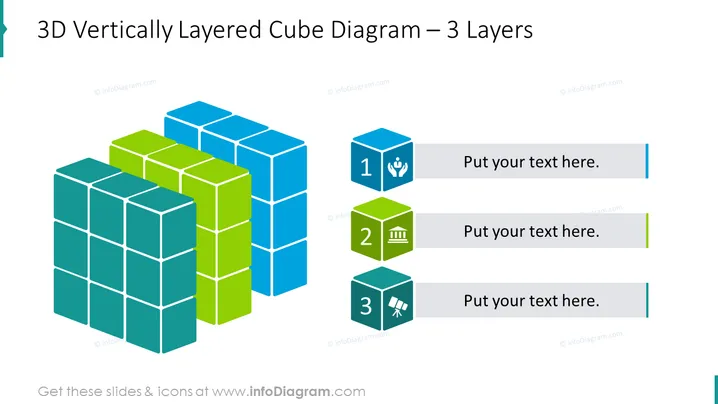
3D Vertically Layered Cube Diagram – 3 Layers
Slide Content
The slide presents a 3D diagram of cubes arranged in vertical layers, which are labelled as 1, 2, and 3, suggesting a hierarchical or sequential structure. Each layer has a different color: blue for the first, green for the second, and teal for the third, accompanied by corresponding placeholders for text. The cubes feature icons—a hand for the first layer indicating support or teamwork, a factory for the second suggesting industry or production, and a satellite dish for the third implying communication or broadcast.
Graphical Look
- A set of three stacks of cubes in isometric perspective, creating a 3D effect.
- The stacks are colored differently: blue, green, and teal, to distinguish the layers.
- Each stack has an accompanying square icon with a number inside (1, 2, and 3), indicating the layers' order.
- Icons within the numbered squares (a hand, a factory, and a satellite dish) symbolize different concepts or functions.
- Text boxes aligned to the right of the cubes, each with a colored accent line matching the respective stack's color.
- The entire composition is set against a light background, which serves to highlight the vibrancy of the colored cubes.
The slide uses a clean and modern design with bold colors to visually separate information. The use of 3D cubes adds depth and makes the presentation dynamic and engaging.
Use Cases
- To visually represent a business process or organizational structure with three key components or stages.
- As a tool for explaining the layers of a complex system, such as software architecture or product development phases.
- To showcase a tiered pricing model with three options, allowing for clear differentiation between the levels.
- In an educational or training context, to display a three-step learning or skill development pathway, emphasizing progression through stages.
How to Edit
How to edit text & colors

How to expand / shorten diagram

How to Replace Icons in infoDiagram PPT


