

Your graphics add a nice touch to my presentations and I recently used them for one of my all-hands meetings. Your toolbox adds professionalism to my slides. Instead of using standard clipart.
Claude Jones, Director of Engineer, @Walmartlabs, USA

Your graphics add a nice touch to my presentations and I recently used them for one of my all-hands meetings. Your toolbox adds professionalism to my slides. Instead of using standard clipart.
Claude Jones, Director of Engineer, @Walmartlabs, USA
I needed a fresh look at some of my slides. I've tried to find a way to create a paintbrush effect, to underline, accentuate, add some color and the handwritten markers were just the things. Very easy to use, easy to size, change the color. It was an affordable, perfect solution and I'm happy to recommend it.
Anonymous, US
The crisp, clean look of the graphics, and the fact that it allowed me to easily edit and change the colors to match the template was my main reason for purchasing them.
Brandie Jenkins, E-learning Developer, USA
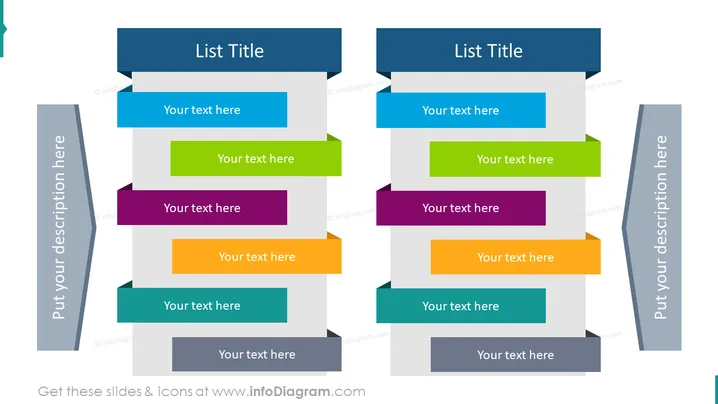
The PowerPoint slide is designed to compare two sets of ideas or concepts, each with six elements. The left-hand side has a vertical banner for a title or description, followed by six horizontally-stacked, colorful rectangular shapes, each accompanied by a placeholder text "Your text here". The right-hand side mirrors the left, allowing for a direct comparison or counterpart to each element. Each rectangular shape represents a different concept or idea to be inserted by the presenter, allowing for a structured comparison or contrasting list format.
The slide utilizes a symmetric layout that is visually balanced, with contrasting elements to clearly delineate two sets of information. Its colorful and organized design is both eye-catching and functional, aiding in the viewer's comparison of the listed items.



