Reviews
Your graphics add a nice touch to my presentations and I recently used them for one of my all-hands meetings. Your toolbox adds professionalism to my slides. Instead of using standard clipart.
I needed a fresh look at some of my slides. I've tried to find a way to create a paintbrush effect, to underline, accentuate, add some color and the handwritten markers were just the things. Very easy to use, easy to size, change the color. It was an affordable, perfect solution and I'm happy to recommend it.
The crisp, clean look of the graphics, and the fact that it allowed me to easily edit and change the colors to match the template was my main reason for purchasing them.
Description
3 Columns E-book Page Layout with Icons
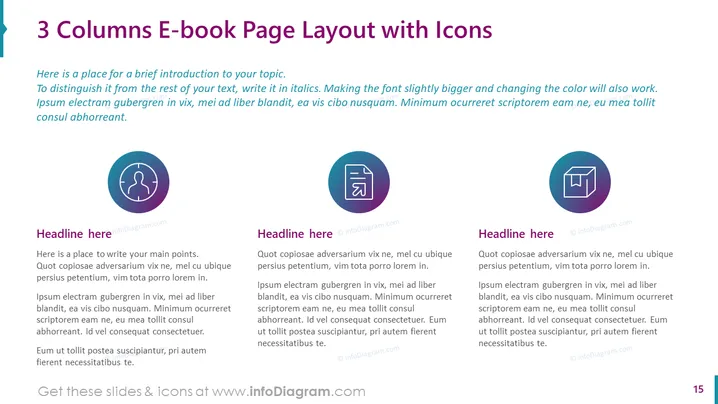
Slide Content: The PowerPoint slide is titled "3 Columns E-book Page Layout with Icons" and presents a template for showcasing information in a three-column format, ideal for e-book or document layouts. Each column is accompanied by a unique icon, suggesting a categorization of content. The first section offers a brief introduction in italicized text, advising on how to differentiate it from the main content. The three columns each have a placeholder heading followed by placeholder text, presumably for detailed discussion, analysis, or descriptive content.
Graphical Look:
- The slide background is white, providing a clean canvas for the content.
- A large, bold, purple title text spans the top of the slide.
- Under the title, there is a short introductory text in italics, differentiated by font style and size.
- Three evenly spaced columns are presented below the introduction, each with a headline in bold.
- Each column features an icon encircled within a purple circle at the top, serving as a visual aid to the text.
- The icons include a lightbulb (idea or inspiration), a window layout (structure or framework), and a pie chart (data or analytics).
- The text within each column is standard placeholder text, in a smaller font size than the headings, suggesting where actual content is meant to be inserted.
- At the bottom right corner, there's a page number "15," indicating this slide's position in a larger presentation.
The overall look of the slide is modern and professional, utilizing icons effectively to break information into digestible pieces. The consistent use of purple adds a harmonious visual theme across the slide.
Use Cases:
- To present different aspects or pillars of a single concept during a business or educational presentation.
- As a template for e-book or online content creators to visually organize information in their digital publications.
- In marketing or sales presentations to compare and contrast features, benefits, or options of a product or service. I'm sorry, but there seems to be an issue with the provided image, and I cannot access its content. If you can provide the image again or describe it to me, I would be more than happy to help you with your request.
How to Edit
How to edit text & colors

How to expand / shorten diagram

How to Replace Icons in infoDiagram PPT


