Reviews
Your graphics add a nice touch to my presentations and I recently used them for one of my all-hands meetings. Your toolbox adds professionalism to my slides. Instead of using standard clipart.
I needed a fresh look at some of my slides. I've tried to find a way to create a paintbrush effect, to underline, accentuate, add some color and the handwritten markers were just the things. Very easy to use, easy to size, change the color. It was an affordable, perfect solution and I'm happy to recommend it.
The crisp, clean look of the graphics, and the fact that it allowed me to easily edit and change the colors to match the template was my main reason for purchasing them.
Description
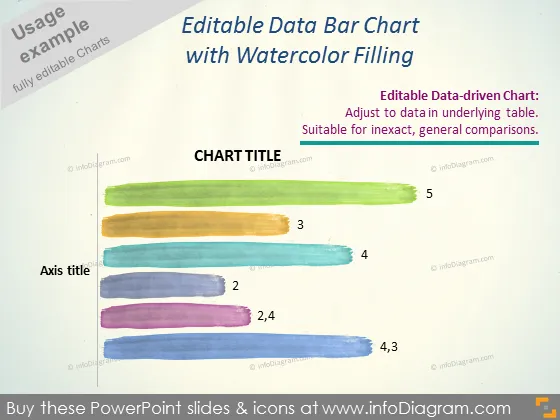
Editable Data Bar Chart with Watercolor Filling
Slide Content
The PowerPoint slide is showcasing an "Editable Data Bar Chart with Watercolor Filling," emphasizing its suitability for general, inexact comparisons. It draws attention to the feature that the chart is data-driven and can be adjusted based on the data in the underlying table. Each bar on the chart represents a value, with numbers like 2, 3, and 5 suggesting different data points, which likely correlate to different categories or periods.
Graphical Look
- The background of the slide is light beige with a subtle texture.
- At the center is a horizontal bar chart with watercolor-style bars in various colors—yellow, green, blue, and purple—each representing different data points, marked with numbers 2 to 5.
- Above the chart is the placeholder text "CHART TITLE" in bold, indicating where a customized title can be added.
- To the left of the chart, the text "Axis title" serves as a placeholder for the axis label.
- The top right corner has a text box with two statements about the chart being editable and suitable for inexact, general comparisons.
- An orange icon of a bar chart can be seen at the bottom right corner of the slide, adding a touch of color consistent with the watercolor theme.
The slide has an artistic feel due to the watercolor-effect bars, giving the chart an approachable, non-traditional look. The text and placeholders are minimal, ensuring the focus remains on the stylized data representation.
Use Cases
- To present statistical data in a more creative and less formal setting such as a brainstorming session or an educational workshop.
- For internal business meetings where the goal is to showcase trends or comparisons without the need for precise data analysis.
- In marketing presentations to visually engage the audience while discussing broad market trends or consumer preferences.
- During a startup pitch to potential investors where a unique and memorable visual approach is desired to convey high-level ideas without delving into complex data.
How to Edit
How to edit text & colors

How to expand / shorten diagram

How to Replace Icons in infoDiagram PPT


