

Your graphics add a nice touch to my presentations and I recently used them for one of my all-hands meetings. Your toolbox adds professionalism to my slides. Instead of using standard clipart.
Claude Jones, Director of Engineer, @Walmartlabs, USA

Your graphics add a nice touch to my presentations and I recently used them for one of my all-hands meetings. Your toolbox adds professionalism to my slides. Instead of using standard clipart.
Claude Jones, Director of Engineer, @Walmartlabs, USA
I needed a fresh look at some of my slides. I've tried to find a way to create a paintbrush effect, to underline, accentuate, add some color and the handwritten markers were just the things. Very easy to use, easy to size, change the color. It was an affordable, perfect solution and I'm happy to recommend it.
Anonymous, US
The crisp, clean look of the graphics, and the fact that it allowed me to easily edit and change the colors to match the template was my main reason for purchasing them.
Brandie Jenkins, E-learning Developer, USA
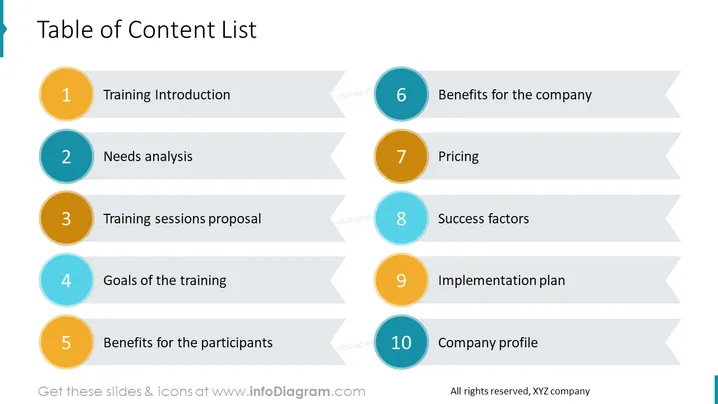
The slide is a "Table of Content List" for a presentation, likely outlining key sections of a training program. It consists of 10 items: "1 Training Introduction" providing an initial overview; "2 Needs Analysis" likely discussing identifying training requirements; "3 Training Sessions Proposal" suggesting structure and content; "4 Goals of the Training" outlining intended outcomes; "5 Benefits for the Participants" detailing individual gains; "6 Benefits for the Company" showcasing organizational advantages; "7 Pricing" indicating cost structure; "8 Success Factors" describing criteria for effective training; "9 Implementation Plan" planning execution steps; "10 Company Profile" introducing the presenting company's background.
The slide is characterized by a clean, professional look with a clear hierarchy, facilitated by color-coding and numbering. The design is straightforward, focusing on clarity and ease of reading.



