Reviews
Your graphics add a nice touch to my presentations and I recently used them for one of my all-hands meetings. Your toolbox adds professionalism to my slides. Instead of using standard clipart.
I needed a fresh look at some of my slides. I've tried to find a way to create a paintbrush effect, to underline, accentuate, add some color and the handwritten markers were just the things. Very easy to use, easy to size, change the color. It was an affordable, perfect solution and I'm happy to recommend it.
The crisp, clean look of the graphics, and the fact that it allowed me to easily edit and change the colors to match the template was my main reason for purchasing them.
Description
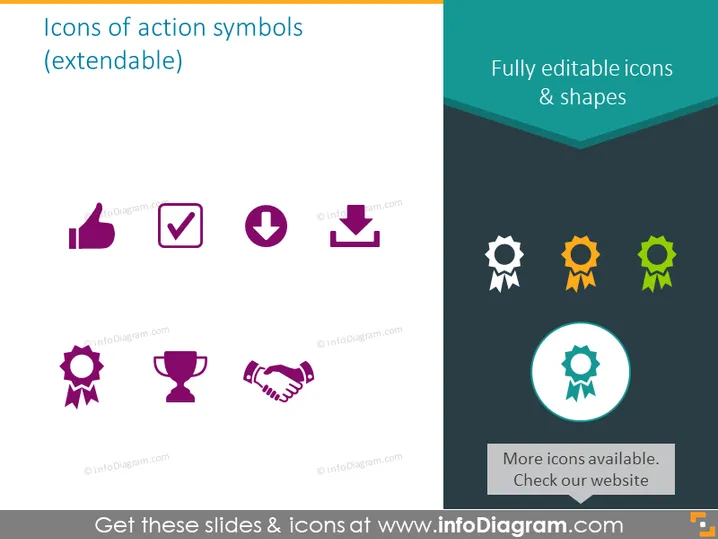
Icons of action symbols (extendable)
Slide Content
The PowerPoint slide presents a collection of icons titled "Icons of action symbols (extendable)," which likely denotes the flexibility to customize or add more icons as needed. These icons include thumbs-up, checkmark, downward arrow, download, award ribbon, trophy, handshake, and a set of gears in varying colors, intended to represent different actions or statuses such as approval, completion, progression, recognition, partnership, and settings or options.
Graphical Look
- The background of the slide is split diagonally from the top left to bottom right, with the larger portion in white and a smaller portion in dark turquoise.
- Eight icons are aligned horizontally across the slide; four at the top and four at the bottom, depicted in a shade of purple.
- On the right, there’s text "Fully editable icons & shapes" oriented vertically in white font against the turquoise background.
- Each icon is paired with a watermark, suggesting that they are samples from a specific provider.
- A circular shape highlighting one of the icons (a ribbon award) appears at the bottom right, emphasized by a lighter circle within a larger turquoise circle.
- Below the circle, there is a text "More icons available. Check our website" in white font.
The slide has a clean, professional look with a simple and straightforward layout. The icons are bold and easily recognizable, ensuring clear communication of each symbol’s intended action or concept.
Use Cases
- Business Presentations: To visually convey different business processes, achievements, or actions during a corporate presentation.
- Project Status Updates: To represent the status of tasks in project management updates, e.g., completed (checkmark), pending (downward arrow), or awarded (trophy).
- Educational Materials: For creating instructional content that requires symbolic representation of actions or outcomes.
- Marketing Materials: In marketing collateral to visually represent service features or benefits, such as customer satisfaction (thumbs-up ) or partnership (handshake).
How to Edit
How to edit text & colors

How to expand / shorten diagram

How to Replace Icons in infoDiagram PPT


