Reviews
Your slides are my "secret sauce" when it comes to presenting my ideas to clients. I save a lot of time.
J'avais un délai de livraison à respecter et je n'avais pas le temps de créer une variété de modèles de diapositives. Infodiagram m'a proposé des options faciles à télécharger et à personnaliser en fonction de mes besoins !
Vos diapositives suscitent souvent de précieux commentaires et idées de la part de mon équipe, ce qui améliore les diapositives finales.
Description
Fully Editable Icons: Style and Color Customization
Slide Content
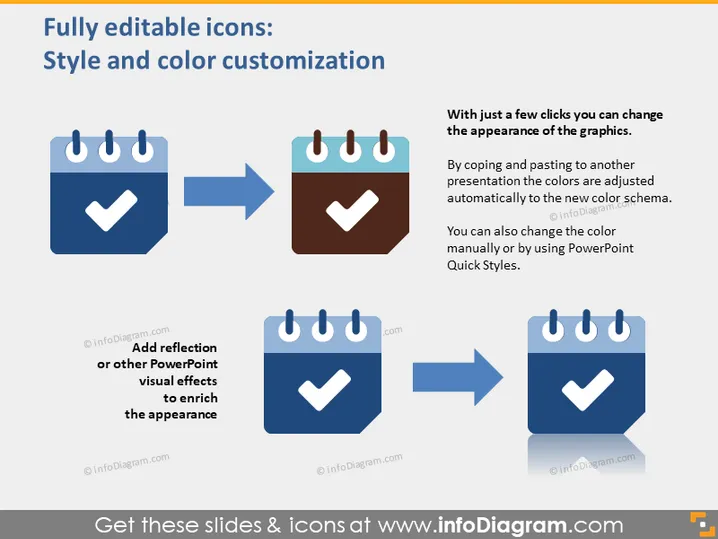
The PowerPoint slide demonstrates "Fully editable icons: Style and color customization" with a step-by-step process showing how icons can be altered in terms of color and effects. The slide suggests that with just a few clicks, the appearance of the graphics can change significantly. By copying and pasting to another presentation, the colors adjust automatically to the new color scheme, illustrating the ease of integration. Additionally, it is mentioned that colors can also be manually changed using PowerPoint Quick Styles or by adding visual effects such as reflection to enrich the icons' appearance, which adds a layer of customization to the presentation design.
Graphical Look
- Two sets of calendar icons shown before and after customization; the left icon is blue and the right is brown.
- Blue arrows indicating the transformation process from the original style to the customized version.
- A text box to the right explains that graphics can change with a few clicks and adjust to a new color scheme.
- Another text box below the left set of icons suggesting the addition of reflections or other PowerPoint visual effects.
- Icons and arrows are designed with a drop shadow, giving a slight 3D effect to the slide elements. The slide has a clean, professional design with a straightforward layout emphasizing the ease of customization. The color contrast between the original and edited icons effectively showcases the customization process.
Use Cases
- To demonstrate how to customize graphic elements in a presentation.
- In a workshop or tutorial for teaching PowerPoint design techniques.
- To showcase the flexibility of a PowerPoint template or icon pack.
- In marketing materials, to highlight the adaptability of digital assets or software features.
How to Edit
How to edit text & colors

How to expand / shorten diagram

How to Replace Icons in infoDiagram PPT


