

Your graphics add a nice touch to my presentations and I recently used them for one of my all-hands meetings. Your toolbox adds professionalism to my slides. Instead of using standard clipart.
Claude Jones, Director of Engineer, @Walmartlabs, USA

Your graphics add a nice touch to my presentations and I recently used them for one of my all-hands meetings. Your toolbox adds professionalism to my slides. Instead of using standard clipart.
Claude Jones, Director of Engineer, @Walmartlabs, USA
I needed a fresh look at some of my slides. I've tried to find a way to create a paintbrush effect, to underline, accentuate, add some color and the handwritten markers were just the things. Very easy to use, easy to size, change the color. It was an affordable, perfect solution and I'm happy to recommend it.
Anonymous, US
The crisp, clean look of the graphics, and the fact that it allowed me to easily edit and change the colors to match the template was my main reason for purchasing them.
Brandie Jenkins, E-learning Developer, USA
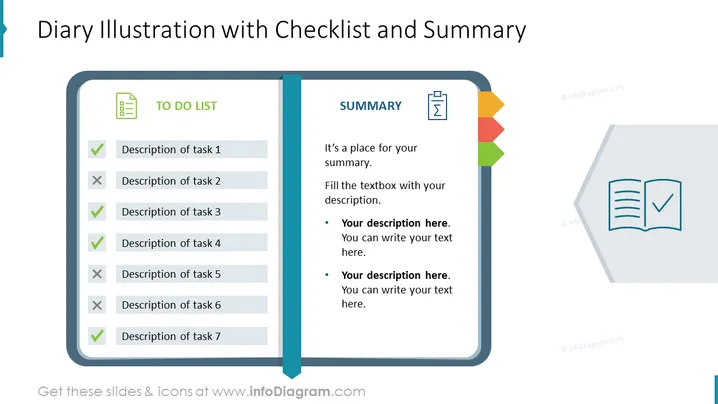
The PowerPoint slide titled "Diary Illustration with Checklist and Summary" presents a stylized, simulated diary spread with two sections. On the left, the "TO DO LIST" displays seven tasks, marked with checkmarks or crosses to denote completion status. This indicates a tracking feature for tasks, showing which are done and which are pending. On the right, the "SUMMARY" section entails placeholders for a textual summary, with bullet points available for additional details or notes that complement the to-do list.
The visual design of the slide blends simplicity with clear structural elements, highlighting the content efficiently. The use of color-coded tabs and icons effectively conveys information hierarchy and status.



