Reviews
Sus gráficos añaden un toque agradable a mis presentaciones y recientemente los usé para una de mis reuniones generales. Su conjunto de herramientas añade profesionalismo a mis diapositivas. En lugar de usar imágenes prediseñadas estándar.
Necesitaba un aspecto fresco para algunas de mis diapositivas. Había intentado encontrar una forma de crear un efecto de pincel, de subrayar, acentuar, añadir algo de color y los marcadores escritos a mano fueron justo lo que necesitaba. Muy fácil de usar, fácil de ajustar el tamaño, cambiar el color. Fue una solución asequible y perfecta, y estoy feliz de recomendarla.
El aspecto nítido y limpio de los gráficos, y el hecho de que me permitiera editar y cambiar fácilmente los colores para que coincidieran con la plantilla fue mi principal razón para comprarlos.
Description
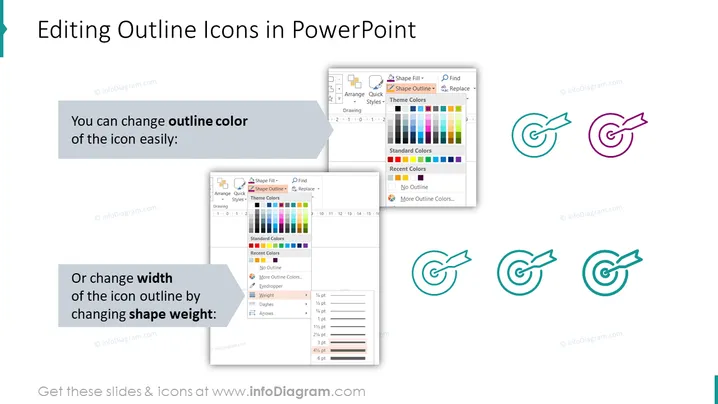
Editing Outline Icons in PowerPoint
Slide Content
The slide is centered on demonstrating how to edit outline icons in PowerPoint. It provides two primary instructions: changing the outline color and altering the width of the icon's outline by changing the shape weight. The color modification suggests ease and flexibility in personalizing icons' appearance to match presentation themes or aesthetics. Increasing or reducing the outline width can emphasize or de-emphasize elements in the icons to suit the presenter's needs.
Graphical Look
- The slide features a white background with a teal-colored left border that complements the central theme.
- A header text in large black font conveys the slide's purpose.
- There are two sections of text in black, each with a key point in bold blue text.
- Accompanying the text are two images depicting PowerPoint interface elements demonstrating the editing processes.
- A series of icons in varying shades of teal and purple illustrate the results of the editing techniques discussed.
- A visual gradient is used on the icons to show the change in outline color and width, enhancing the instructional purpose of the slide.
The slide is thoughtfully designed with a simple yet effective color scheme that helps to illustrate the editing process it describes. The visuals are clear, direct, and enhance the educative nature of the content.
Use Cases
- To train employees on how to customize PowerPoint presentations for brand-consistent corporate communication.
- In a workshop about advanced PowerPoint skills to help participants refine their presentation design techniques.
- During a webinar on visual communication where the flexibility and impact of visual elements in presentations are explained.
- As a reference in instructional materials for students or professionals learning about graphic design within office software.
How to Edit
How to edit text & colors

How to expand / shorten diagram

How to Replace Icons in infoDiagram PPT


