Reviews
Your graphics add a nice touch to my presentations and I recently used them for one of my all-hands meetings. Your toolbox adds professionalism to my slides. Instead of using standard clipart.
I needed a fresh look at some of my slides. I've tried to find a way to create a paintbrush effect, to underline, accentuate, add some color and the handwritten markers were just the things. Very easy to use, easy to size, change the color. It was an affordable, perfect solution and I'm happy to recommend it.
The crisp, clean look of the graphics, and the fact that it allowed me to easily edit and change the colors to match the template was my main reason for purchasing them.
Description
Editing Outline Icons in PowerPoint
Slide Content
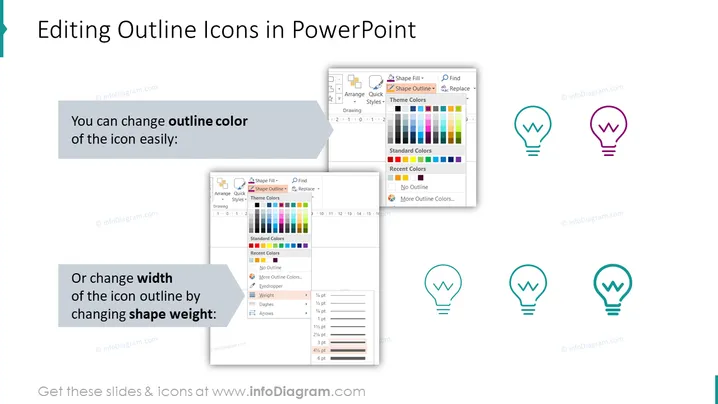
The slide is a tutorial on how to customize outline icons within PowerPoint. It presents two key customizations: changing the icon's outline color and changing its outline width by adjusting the shape weight. "You can change outline color of the icon easily:" indicates that altering the color is a straightforward process. Below this statement, a dropdown menu showing color options depicts this feature. "Or change width of the icon outline by changing shape weight:" suggests that it is possible to modify the thickness of the icon's border, with a menu displaying various line weights illustrating how to do this.
Graphical Look
- The slide background is white with a hint of shadow giving a slight 3D effect on the edges.
- The title of the slide is at the top, set in bold with a larger font size for emphasis.
- There are two main text blocks, each with a blue highlight emphasizing the key action of changing color and changing width.
- Each text block is accompanied by an image of a dropdown menu from PowerPoint, showing the color selection tool and the line weight tool, respectively.
- To the right of the first text block, there are three lightbulb icons displayed vertically, each having a different outline color (cyan, purple, magenta) to exemplify the color change feature.
- Below the second text block, there is a horizontal sequence of five lightbulb icons showing the progression of line weight from thin to thick.
- All graphical objects have drop shadows, contributing to a layered appearance on the slide.
The slide has a clean, instructional design with a balance between text, screenshots, and icon examples. The use of drop shadows for each element creates depth, while the blue highlights effectively draw attention to the key learning points.
Use Cases
- To train employees on how to customize and enhance their PowerPoint presentations.
- In a workshop for beginners learning to use PowerPoint effectively.
- During a webinar on advanced PowerPoint techniques for creating more visually appealing presentations.
- As part of a tutorial session on graphic design within presentation software for marketing professionals.
How to Edit
How to edit text & colors

How to expand / shorten diagram

How to Replace Icons in infoDiagram PPT


