Reviews
Your graphics add a nice touch to my presentations and I recently used them for one of my all-hands meetings. Your toolbox adds professionalism to my slides. Instead of using standard clipart.
I needed a fresh look at some of my slides. I've tried to find a way to create a paintbrush effect, to underline, accentuate, add some color and the handwritten markers were just the things. Very easy to use, easy to size, change the color. It was an affordable, perfect solution and I'm happy to recommend it.
The crisp, clean look of the graphics, and the fact that it allowed me to easily edit and change the colors to match the template was my main reason for purchasing them.
Description
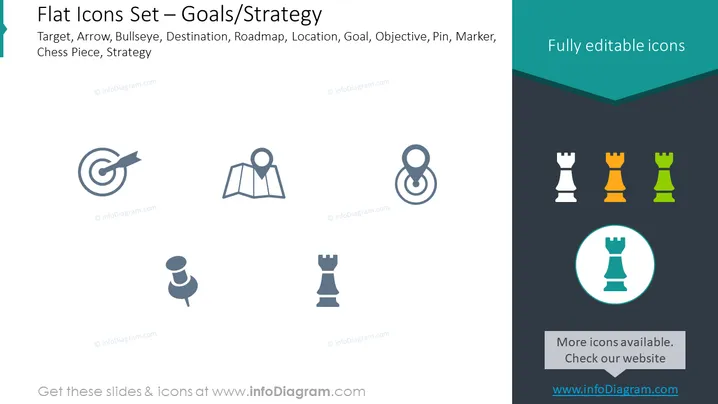
Flat Icons Set – Goals/Strategy
Slide Content
The PowerPoint slide presents a collection of flat icons representing various elements associated with setting goals or strategy. The slide title suggests the theme of the icons, which include a target with an arrow, symbolizing direct aim or objectives; a map pin, representing location or destination goals; a combination map pin and circular path, perhaps indicating a journey to a goal; and three chess pieces—rook, knight, and pawn—each symbolizing different strategic roles or positions within a broader strategy.
Graphical Look
- The background of the slide is divided into two sections: the upper part is white and the lower part has a dark teal color.
- Six icons are displayed in two rows and three columns.
- The first row of icons, from left to right, includes a target with an arrow, a map with a location pin, and a pin surrounded by a looped path.
- The second row of icons, from left to right, shows three chess pieces: a rook, a knight, and a pawn, with varying colors (grey, orange, green).
- The rook and the pawn icons in the second row are grey-scale, while the knight is in orange.
- There is a note below the icons indicating that they are fully editable.
- A highlighted circle surrounds the pawn to perhaps indicate a selection or a focus on that particular icon.
- A rectangular area at the lower right in the teal section contains a smaller text box with a call to action to check the website for more icons.
The overall look of the slide is modern and clean, with a professional visual composition using flat design icons that are uniformly spaced for a balanced look. The use of color is minimalistic, focusing users' attention on the highlighted pawn icon.
Use Cases
- To visually enhance a presentation section about strategic planning or goal setting.
- To serve as a discussion point or visual cue during meetings focusing on roles in team strategy or project management.
- When introducing concepts related to location-based services or logistics as part of a business strategy.
- As a tool to prompt discussion on tactics and planning during a workshop or training session on strategic development or project management.
How to Edit
How to edit text & colors

How to expand / shorten diagram

How to Replace Icons in infoDiagram PPT


