

Your graphics add a nice touch to my presentations and I recently used them for one of my all-hands meetings. Your toolbox adds professionalism to my slides. Instead of using standard clipart.
Claude Jones, Director of Engineer, @Walmartlabs, USA

Your graphics add a nice touch to my presentations and I recently used them for one of my all-hands meetings. Your toolbox adds professionalism to my slides. Instead of using standard clipart.
Claude Jones, Director of Engineer, @Walmartlabs, USA
I needed a fresh look at some of my slides. I've tried to find a way to create a paintbrush effect, to underline, accentuate, add some color and the handwritten markers were just the things. Very easy to use, easy to size, change the color. It was an affordable, perfect solution and I'm happy to recommend it.
Anonymous, US
The crisp, clean look of the graphics, and the fact that it allowed me to easily edit and change the colors to match the template was my main reason for purchasing them.
Brandie Jenkins, E-learning Developer, USA
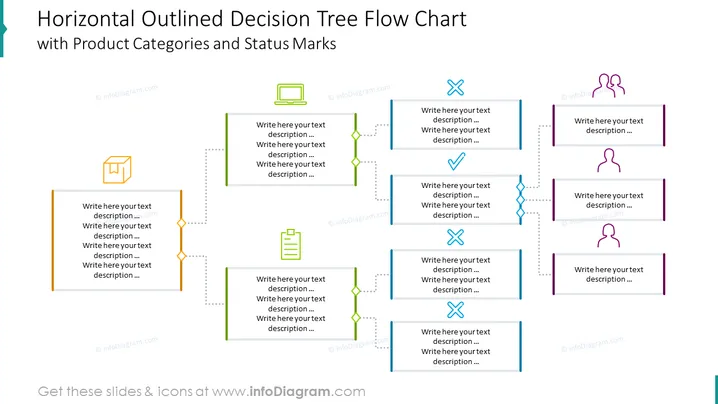
This PowerPoint slide illustrates a decision tree flow chart that is designed to outline a process horizontally. It includes placeholders for text descriptions and symbols indicating product categories and statuses. These decision points can represent moments in a process where a choice between different options is made, with each option leading the user down a unique path. Icons such as a box, document, and checkmark or cross are used to indicate different stages or outcomes, such as completion status, project stages, or evaluation results.
The slide is well-organized with clear visual differentiation between the separate decision paths. The use of colorful icons and lines helps to distinguish various outcomes and stages in the outlined processes.



