Reviews
Your graphics add a nice touch to my presentations and I recently used them for one of my all-hands meetings. Your toolbox adds professionalism to my slides. Instead of using standard clipart.
I needed a fresh look at some of my slides. I've tried to find a way to create a paintbrush effect, to underline, accentuate, add some color and the handwritten markers were just the things. Very easy to use, easy to size, change the color. It was an affordable, perfect solution and I'm happy to recommend it.
The crisp, clean look of the graphics, and the fact that it allowed me to easily edit and change the colors to match the template was my main reason for purchasing them.
Description
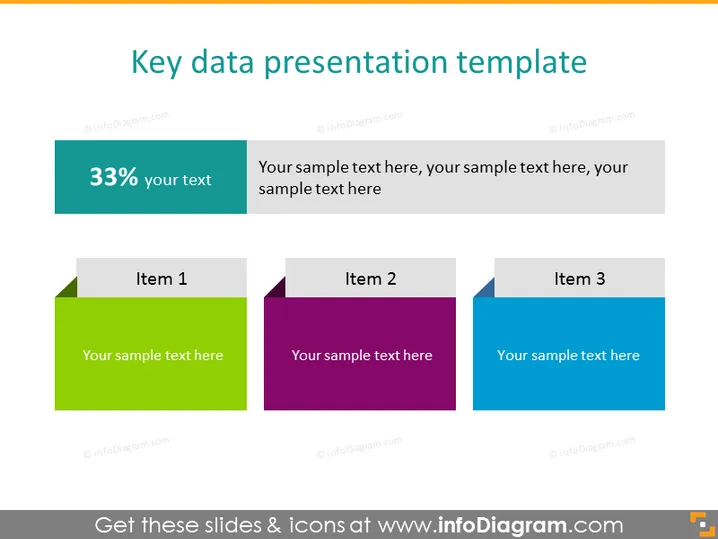
Key data presentation template
Slide Content
The slide is titled "Key data presentation template" and appears to present a method for displaying key data points or progress metrics in a visual format. There are three colored square-shaped graphics, each with a header "Item 1," "Item 2," and "Item 3," suggesting a place to input individual data points or concepts. Each of these is accompanied by a placeholder text indicating where to add descriptive text. Additionally, on the left, a teal-colored rectangle states "33%" with a subtitle "your text," implying a space for a statistic or key figure with related details.
Graphical Look
- The slide background is a plain white color.
- The slide title is set in large, dark text positioned at the top.
- A teal rectangle on the left features "33%" in large, white font, with a place for additional text beneath it in smaller font size.
- Three square-shaped elements with gradient fill are organized horizontally across the slide.
- Each square element contains a lighter colored tab at the top with "Item 1," "Item 2," and "Item 3" labels respectively.
- The color scheme for the square elements varies from green for "Item 1", purple for "Item 2", and blue for "Item 3".
- A placeholder text is provided in each of the squares in a white font.
- Visually, the slide elements are balanced, with harmonious spacing between items.
The PowerPoint slide exhibits a professional and clean design. The use of color gradients and distinct separation of items ensures clarity and visual appeal.
Use Cases
- Displaying key performance indicators in a business meeting or report.
- Illustrating progress on different project milestones during a project update presentation.
- Showcasing statistical data or percentages in a marketing or sales pitch.
- Summarizing different service offerings or product features in a company overview presentation.
How to Edit
How to edit text & colors

How to expand / shorten diagram

How to Replace Icons in infoDiagram PPT


