Reviews
Your graphics add a nice touch to my presentations and I recently used them for one of my all-hands meetings. Your toolbox adds professionalism to my slides. Instead of using standard clipart.
I needed a fresh look at some of my slides. I've tried to find a way to create a paintbrush effect, to underline, accentuate, add some color and the handwritten markers were just the things. Very easy to use, easy to size, change the color. It was an affordable, perfect solution and I'm happy to recommend it.
The crisp, clean look of the graphics, and the fact that it allowed me to easily edit and change the colors to match the template was my main reason for purchasing them.
Description
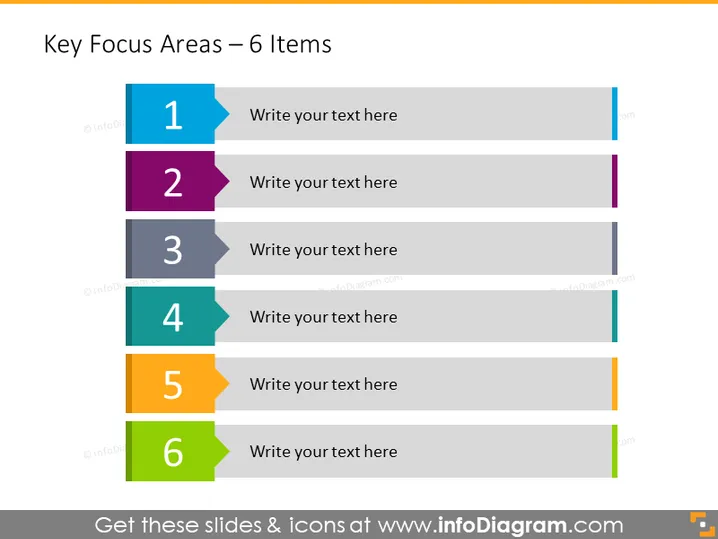
Key Focus Areas – 6 Items
Slide Content
The slide displays a list of "Key Focus Areas" with six items, each represented by a numbered banner followed by a placeholder text "Write your text here." These banners are likely meant to highlight six distinct priorities or topics. For example, number "1" could represent the most immediate priority or the first step in a process, with the subsequent numbers following in order of importance or sequence.
Graphical Look
- Six horizontal banners in distinct colors (blue, purple, gray, teal, orange, and green), each with a large white number (from 1 to 6).
- Placeholder text boxes to the right of each banner where explanatory text can be added.
- Thin vertical lines extend from the end of each banner to the right of the slide, with a small colored rectangle matching the banner color at the end of each line.
The slide has a clean and modern design with a clear structure that facilitates easy reading and comprehension. The use of different colors aids in distinguishing each focus area.
Use Cases
- Outlining the agenda points in a business meeting or presentation.
- Highlighting the stages of a project timeline or workflow.
- Presenting a company’s priorities or strategic plan elements.
- Enumerating a list of instructions or action items during a training session.
How to Edit
How to edit text & colors

How to expand / shorten diagram

How to Replace Icons in infoDiagram PPT


