Reviews
Your graphics add a nice touch to my presentations and I recently used them for one of my all-hands meetings. Your toolbox adds professionalism to my slides. Instead of using standard clipart.
I needed a fresh look at some of my slides. I've tried to find a way to create a paintbrush effect, to underline, accentuate, add some color and the handwritten markers were just the things. Very easy to use, easy to size, change the color. It was an affordable, perfect solution and I'm happy to recommend it.
The crisp, clean look of the graphics, and the fact that it allowed me to easily edit and change the colors to match the template was my main reason for purchasing them.
Description
7 Steps Arrow Circle Cycle Flow Chart
Slide Content
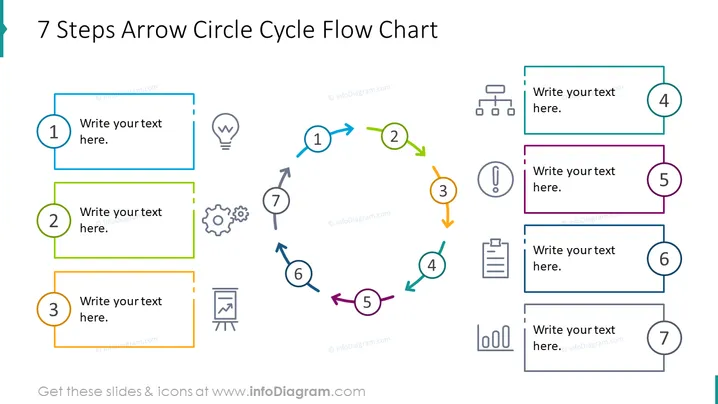
This PowerPoint slide presents a cyclical process using a "7 Steps Arrow Circle Cycle Flow Chart". Each of the seven steps is represented by a circular numbered element connected to a text box where specific information can be noted. The colored outline of each box corresponds to the color of its related circle, supporting visual coherence. The clockwise sequence suggests a recurring process or progression through tasks or stages. This kind of visualization is effective for explaining iterative workflows, product life cycles, or continuous improvement models.
Graphical Look
- The slide features a central circular flow chart with arrows connecting the steps in a clockwise direction.
- Each step is indicated by a colored circle numbered from 1 to 7, with each number having a unique color.
- A text box is adjacent to each numbered circle, where step descriptions can be written.
- The text boxes are outlined in a color matching their corresponding numbered circle to maintain visual coherence.
- Small icons adjacent to each step: a lightbulb for step 1, gears for step 2, an exclamation mark for step 3, and so on, each relating to common metaphorical representations of ideas, processes, and tasks.
- The arrows connecting the circles are colored to subtly transition from one step to the next, forming a gradient as they progress through the cycle.
The overall look is clean and professional, with a clear, colorful scheme to differentiate each step in the cycle. The text boxes offer ample space for explanation, with simple yet evocative icons serving as visual cues.
Use Cases
- To illustrate a business process with seven key steps, especially where the process is non-linear or cyclical.
- For training materials to present a sequence of actions or checkpoints that an employee must follow.
- In project management presentations to showcase the stages of project development from conception to completion.
- For marketing strategy slides to detail the stages of customer engagement or the product journey.
How to Edit
How to edit text & colors

How to expand / shorten diagram

How to Replace Icons in infoDiagram PPT


