Reviews
Sus gráficos añaden un toque agradable a mis presentaciones y recientemente los usé para una de mis reuniones generales. Su conjunto de herramientas añade profesionalismo a mis diapositivas. En lugar de usar imágenes prediseñadas estándar.
Necesitaba un aspecto fresco para algunas de mis diapositivas. Había intentado encontrar una forma de crear un efecto de pincel, de subrayar, acentuar, añadir algo de color y los marcadores escritos a mano fueron justo lo que necesitaba. Muy fácil de usar, fácil de ajustar el tamaño, cambiar el color. Fue una solución asequible y perfecta, y estoy feliz de recomendarla.
El aspecto nítido y limpio de los gráficos, y el hecho de que me permitiera editar y cambiar fácilmente los colores para que coincidieran con la plantilla fue mi principal razón para comprarlos.
Description
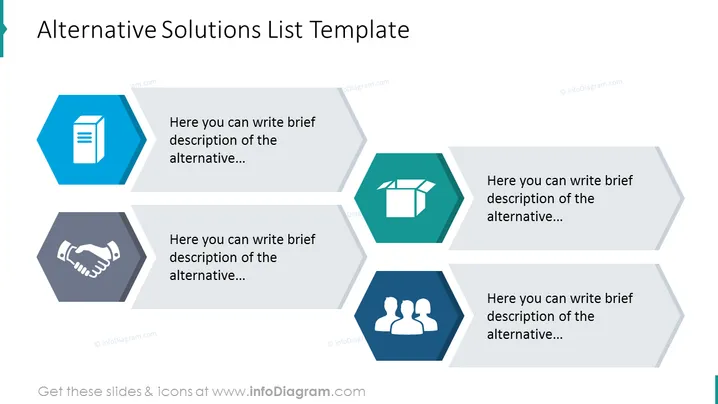
Alternative Solutions List Template
Slide Content:
The PowerPoint slide is a framework designed to present a list of alternative solutions. It features four hexagonal icons, each accompanied by a space for a brief description of an alternative solution. The icons serve as visual cues for the types of solutions or strategies being proposed, encouraging the presenter to outline distinct options that could be considered in decision-making or problem-solving scenarios.
Graphical Look:
- Four large hexagon icons, each a different shade of blue or grey, symbolizing various solution options.
- Next to each hexagon is a corresponding elongated text box for descriptions.
- The icons and text boxes are aligned diagonally across the slide, creating a dynamic visual flow.
The overall design is clean, with a professional color palette and geometric shapes that provide a structured layout for the information.
Use Cases:
- In strategic planning meetings to evaluate different approaches to a goal.
- During brainstorming sessions to document and compare potential solutions.
- In project proposals to outline various options for achieving project objectives.
- For decision-making processes where multiple alternatives must be considered and presented.
How to Edit
How to edit text & colors

How to expand / shorten diagram

How to Replace Icons in infoDiagram PPT


