

Your graphics add a nice touch to my presentations and I recently used them for one of my all-hands meetings. Your toolbox adds professionalism to my slides. Instead of using standard clipart.
Claude Jones, Director of Engineer, @Walmartlabs, USA

Your graphics add a nice touch to my presentations and I recently used them for one of my all-hands meetings. Your toolbox adds professionalism to my slides. Instead of using standard clipart.
Claude Jones, Director of Engineer, @Walmartlabs, USA
I needed a fresh look at some of my slides. I've tried to find a way to create a paintbrush effect, to underline, accentuate, add some color and the handwritten markers were just the things. Very easy to use, easy to size, change the color. It was an affordable, perfect solution and I'm happy to recommend it.
Anonymous, US
The crisp, clean look of the graphics, and the fact that it allowed me to easily edit and change the colors to match the template was my main reason for purchasing them.
Brandie Jenkins, E-learning Developer, USA
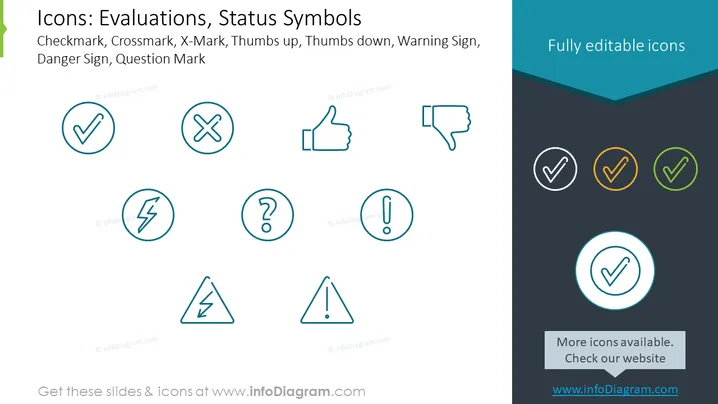
The PowerPoint slide is titled "Icons: Evaluations, Status Symbols" and displays a series of universal symbols often used to represent various statuses or evaluations. Featured are eight distinct icons: a Checkmark indicating approval or completion; a Crossmark and an X-Mark, both commonly representing a negative or incorrect response; a Thumbs up symbolizing agreement or satisfaction; a Thumbs down conveying disagreement or dissatisfaction; a Warning Sign, typically used to alert of potential danger; a Danger Sign specifically indicating hazardous conditions; and finally, a Question Mark signifying uncertainty or the need for further information.
The slide presents a neat and professional appearance, using a color scheme that is both appealing and ensures good contrast between elements. The icons are spaced evenly and aligned symmetrically, producing a balanced and organized visual look.



