Reviews
Your graphics add a nice touch to my presentations and I recently used them for one of my all-hands meetings. Your toolbox adds professionalism to my slides. Instead of using standard clipart.
I needed a fresh look at some of my slides. I've tried to find a way to create a paintbrush effect, to underline, accentuate, add some color and the handwritten markers were just the things. Very easy to use, easy to size, change the color. It was an affordable, perfect solution and I'm happy to recommend it.
The crisp, clean look of the graphics, and the fact that it allowed me to easily edit and change the colors to match the template was my main reason for purchasing them.
Description
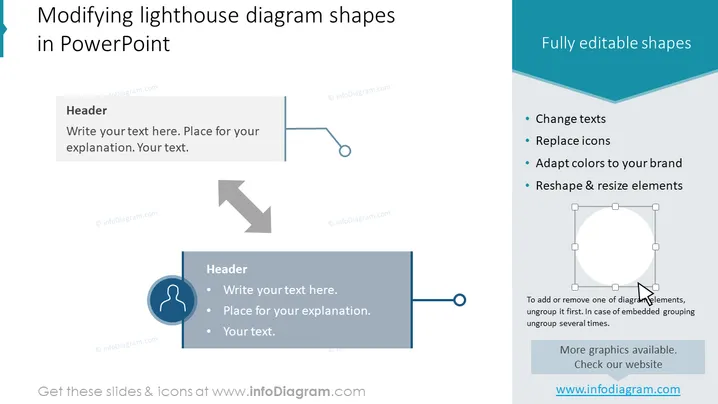
Modifying lighthouse diagram shapes in PowerPoint
Slide Content
This PowerPoint slide is intended to illustrate how to modify "lighthouse diagram shapes." It provides an overview of fully editable shapes, with instructions such as "Change texts," "Replace icons," "Adapt colors to your brand," and "Reshape & resize elements." These points suggest that the shapes can be customized for different presentations by altering text, icons, and colors to fit the brand's identity, and by adjusting the size and contours of visual elements to suit specific needs.
Graphical Look
- The slide background is white, creating a clean and minimalistic backdrop for the contents.
- Two content blocks are arranged horizontally across the slide, divided by a central chevron arrow pointing towards the right content block.
- The left content block includes a smaller header with a blue horizontal stripe, beneath which is a placeholder text box.
- A circular icon with a user silhouette at the bottom of the left content block serves as an example of an editable shape.
- The right content block has a teal header with the title "Fully editable shapes" in white text.
- A vertical list in the right content block outlines the editable features with check-mark bullets.
- A circular diagram with a silhouette of a lighthouse and editable points is located at the right content block's bottom, illustrating the modification process.
The slide has a modern and professional aesthetic, with a balanced use of space and a clear visual hierarchy that directs attention from the general title on the left to the more detailed overview on the right.
Use Cases
- Illustrate the customization options available in a business presentation software during a training or workshop.
- Showcase a company’s branding flexibility within marketing or sales presentations.
- Enhance a product demonstration by displaying how adaptable the graphics are to various contexts or client needs.
- Provide visual instructions in an educational setting for teaching design principles in presentation software.
How to Edit
How to edit text & colors

How to expand / shorten diagram

How to Replace Icons in infoDiagram PPT


